
What Is Favicon | How to Create a Favicon for Your Website
What is favicon, and why does every website need one? A favicon is the tiny image that appears beside the page title in a browser tab. You also see it in bookmarks, in browser history, and in many search results. It is small, but visitors rely on it every day to spot a site quickly.
This guide covers the basics and the practical steps. First, you will learn the best favicon format and the right favicon image size. Next, you will see how to create a favicon from your logo. Then you will learn how to add a favicon to a website with plain HTML, WordPress, and Shopify. Finally, you will find design tips, common mistakes, and answers to frequent questions.
You do not need design skills. If you can export an image and click through a settings page, you can finish the job in under thirty minutes.
Table of Contents
- What Is Favicon | A Simple Definition
- Why a Small Icon Matters for Your Brand
- Best Favicon Format and File Type
- Favicon Image Size Guide
- How to Create a Favicon from Your Logo
- Free Favicon Generator Tools
- How to Add a Favicon to a Website with HTML
- How to Set Up a Favicon in WordPress
- Favicon for Shopify: How to Upload It
- Smart Design Tips for Strong Branding
- Best Sizes for Retina and High Density Screens
- Favicon SEO and Brand Benefits
- Designing for Mobile and App Use
- Common Mistakes and Quick Fixes
- Frequently Asked Questions
- Conclusion and Next Step
1. What Is Favicon | A Simple Definition
The word favicon is short for favorite icon. Early versions of Internet Explorer used a small image to mark pages in a favorites list. The idea stayed, so every major browser now shows a favicon, and it appears in more places than before.
A favicon usually appears in these places:
- Browser tabs, right next to the page title
- Bookmark lists and the favorites bar
- History pages and the new tab screen
- Search results on phones and desktops
- Home screen shortcuts on phones and tablets
So, what is a favicon on a website in practical terms? It is a small square image file that you upload once. After that, every browser reads it from your site.
Think of it as a tiny version of your brand. It does not need to show every detail of your logo. However, it must be clear enough that a person can spot your site among ten or twenty open tabs.
When no icon exists, the browser shows a plain globe or a blank page symbol. That symbol tells nobody who you are.
2. Why a Small Icon Matters for Your Brand
Many people keep a large number of tabs open at once. Because tab titles shrink, the icon often remains the only clue. A clear favicon lets a visitor return to your page in one click. Otherwise, they must search through a long row of tabs.
A missing icon also makes a site look unfinished. Visitors may not think about it on purpose. Still, small details add up to a feeling of care and quality. A neat favicon says that someone looks after the site.
Repeat visitors gain the most. After a few visits, they link the icon with your content. As a result, your site feels familiar. The icon becomes a quiet signature that follows your audience across tabs, bookmarks, and devices.
Here are the main benefits:
- Quick recognition among many open tabs
- A polished and trustworthy first impression
- Easier bookmarking, since your site is simple to spot
- Consistent branding on desktop and mobile
3. Best Favicon Format and File Type
Browsers accept several kinds of image file. Each one has strengths, so many websites use more than one. When you pick a favicon format, think about browser support, image quality, and ease of updates.
ICO Format
ICO is the oldest option. One ICO file can hold several sizes, for example 16, 32, and 48 pixels. Every major browser can read it, including older versions. Many site owners still place a file named favicon.ico in the root folder as a safe fallback.
PNG Format
PNG gives clean, sharp results and supports a transparent background. It suits most websites. Moreover, any image editor can export it, including free ones.
SVG Format
SVG is a vector format, so it scales to any size without losing quality. Modern browsers handle it well. With a few lines of code, it can even switch colours for dark mode. Because some tools treat SVG icons differently, keep a PNG or ICO file as a backup.
A safe setup for most sites has three files. Include one SVG file, one ICO file, and one PNG file at 180×180 pixels for Apple devices. Together, they cover nearly every visitor.
Which one should you pick? For the simplest route, choose PNG. To reach older browsers, add ICO. For the sharpest result on every screen, add SVG. Most sites combine all three, so no visitor sees a broken icon.
4. Favicon Image Size Guide
Different places need different sizes. If you prepare a small set of files, you will cover almost every case. The list below shows the sizes that matter most for your favicon image size plan:
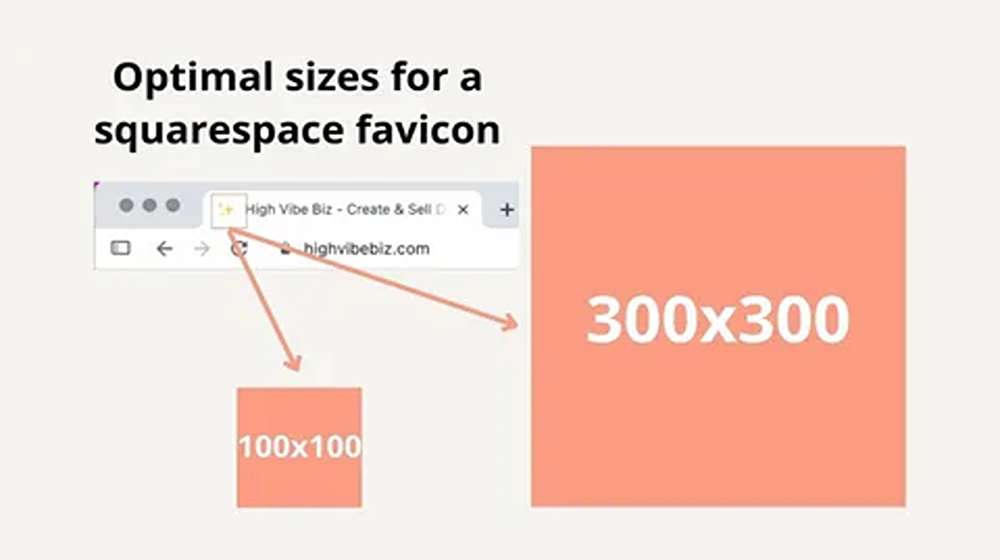
- 16×16 px for browser tabs on standard screens
- 32×32 px for sharper screens and desktop shortcuts
- 48×48 px as a good base size for Google search results
- 180×180 px for the Apple touch icon on iPhone and iPad
- 192×192 px and 512×512 px for Android and web app icons
Google explains its rules in the Google Search Central guidelines. The image must be square, with a 1:1 ratio. Google sets the minimum at 8×8 pixels, yet it recommends a size larger than 48×48 pixels. In addition, the file address should stay stable, and Googlebot must be able to crawl the file.
Always begin with a large square image, for example 512×512 pixels, and scale it down. Scaling a tiny image up makes it blurry. Also keep the file light, since most icons weigh less than 10 KB. They have almost no effect on page speed.
One more habit saves time later. Store your master file, the exported icons, and the brand colour codes in one shared folder. Then every designer and developer works from the same files.
5. How to Create a Favicon from Your Logo
A full logo rarely works at 16 pixels. Fine lines vanish, and small words turn into a smudge. So, use the steps below to create a favicon without losing the look of your brand:
- Pick the strongest part of the logo, such as a symbol or a single letter.
- Remove all words and thin details.
- Crop the artwork into a 1:1 square and leave a little space around the edges.
- Choose bold colours that stay visible on both light and dark tab bars.
- Export the image at 512×512 pixels, then shrink a copy to 16 pixels to check that it still reads well.
If your logo has many parts, do not squeeze all of them in. One clear shape is better than five tiny ones. For example, a simple letter in your main brand colour often does the job well.
6. Free Favicon Generator Tools
You do not need to be a designer. A favicon generator can turn a logo, a word, or a simple image into a full set of files in a few clicks. Three tools are easy to use:
- io lets you upload a logo, type a letter, or pick an emoji.
- net builds icons for many platforms and shows a preview of each one.
- Canva lets you shape a square design with your own colours, and you can then export it as a PNG.
Each free favicon generator offers downloads in several formats, so uploading the result is simple. After you export the files, open them at their real size on your screen. A design that looks fine when enlarged may still be hard to read at 16 pixels. If the result looks weak, simplify the source image and export again.
Many people search for a favicon generator because it saves time. However, even the best tool needs a clean source image.
7. How to Add a Favicon to a Website with HTML
If you manage your site by hand, you can add a favicon with a few lines of code. First, upload your icon files to the root folder of your website. Next, paste the code below into the head section of every page. Alternatively, place it in the shared header file if your site uses one.
Google reads the icon from your home page, so make sure the tag sits there. After you save the change, clear your browser cache or do a hard refresh. Browsers keep old icons for a long time, so the new one may not show at first. If it still does not change, open the file address directly to confirm that it loads.
8. How to Set Up a Favicon in WordPress
The favicon WordPress setting has a different name. WordPress calls it the Site Icon and handles the rest in the background. Follow these steps to add a favicon in WordPress:
- Log in and open the Dashboard.
- Go to Appearance, then Customise, then Site Identity.
- Choose Select Site Icon and upload your square image, since WordPress asks for at least 512×512 pixels.
- Crop the image if needed, then save and publish your changes.
If your theme does not show the Customise screen, look under Settings, then General, for the Site Icon option. WordPress creates the smaller versions on its own. Therefore, you only need to upload one clean square file. A favicon WordPress setup usually takes about two minutes.
This feature reaches a very large audience. Market data from W3Techs technology statistics shows that roughly four in ten websites in 2026 run on WordPress. As a result, the Site Icon screen is one of the most used branding tools on the web.
9. Favicon for Shopify | How to Upload It
Shopify keeps the process short. Use these steps to add a favicon for Shopify:
- From the Shopify admin, open Online Store, then Themes.
- Click Customise on your live theme.
- Open Theme settings and select Favicon.
- Upload your image and click Save.
Shopify resizes the image for you, so you do not need to worry about exact dimensions. Still, use a square image of at least 32×32 pixels. A larger file, such as 512×512 pixels, will look sharper.
Shoppers trust a neat storefront before they reach the checkout. If you sell in Pakistan, you may also want to review our list of top payment gateways in Pakistan for 2026. Are you thinking about a change of platform? Our guide on how to migrate from Shopify to WooCommerce explains what to move and what to keep, including your brand icon.
10. Smart Design Tips for Strong Branding
A good icon reflects your brand and stays clear at a tiny size. Keep these points in mind:
- Use your main brand colour so that people recognise the icon quickly.
- Keep the shape minimal and easy to identify.
- Avoid text, because words become unreadable at 16 pixels.
- Choose strong contrast between the shape and its background.
- Test the icon on both light and dark browser themes.
A clean and simple design stays clear on every screen. If you are unsure between two options, pick the simpler one. You can also test both in a live tab for a day. Then keep the one that you find faster.
11. Best Sizes for Retina and High Density Screens
Modern phones and laptops pack many more pixels into the same space. As a result, a small image that looks fine on an older monitor can look soft on these screens. To keep your favicon sharp, follow these rules:
- Create versions at 32×32, 64×64, and 180×180 pixels.
- Use SVG whenever possible, since it scales without blur.
- Export from a large master file instead of enlarging a small one.
These steps stop the icon from looking blurry or pixelated on high resolution displays. They also make future updates easier. You can always return to the master file and export a new set.
12. Favicon SEO and Brand Benefits
Here is the honest answer about favicon SEO. Google has not named a favicon as a ranking factor, so do not expect a direct jump in rankings. Even so, it supports the user experience and the credibility of your brand. Both matter for long term growth.
A site with a clear icon looks more complete and more reliable. That good impression can encourage people to click, to bookmark the page, and to come back later. Search results can also show your icon beside the page title, so your listing looks more familiar.
For Google to use your icon, follow a few simple rules. The file must be crawlable, and the address should stay stable. Also, the icon should suit your brand. Because Google reads it from your home page, a change can take days or even weeks to show.
Think of the icon as a small trust signal, not a ranking trick. Brands that look consistent in tabs, results, and bookmarks are easier to remember. Over time, that memory can lead to more direct visits and repeat searches for your name.
13. Designing for Mobile and App Use
Suppose your website has a mobile app, or people save it to a phone home screen. In that case, your icon should match the app icon. This keeps your branding consistent across every platform.
For iOS and Android, create icons at 180×180 pixels or larger. Choose a background that contrasts well with common device themes, since users may switch between light and dark mode. Also leave a small margin around the shape, because some devices round the corners.
Consistency is the goal. A visitor who sees the same shape in a tab, on a home screen, and in a bookmark list will remember your brand more easily.
14. Common Mistakes and Quick Fixes
Most problems come from a small set of causes. Check this list before you contact a developer:
- Wrong folder: move the file to the root folder and check the address in your code.
- Old icon still showing: clear the cache or use a private window.
- Blurry look: export the icon again from a large square master file.
- Poor visibility: raise the contrast and remove thin details.
- Single file type: add an ICO or PNG backup to your SVG file.
- Outdated icon after a rebrand: replace every version, including the Apple touch icon.
Fix these items one at a time, and test after each change. A quick check in two or three browsers will show whether the problem is gone.
15. Frequently Asked Questions
Q1. Can I use a PNG file as my favicon?
Yes. Most modern browsers support PNG icons. For the widest support, keep an ICO file in the root folder as well.
Q2. Where should I upload my favicon file?
Place it in the root folder of your website so that every page can reach it. On WordPress and Shopify, use the built in settings screen instead.
Q3. Does a favicon affect website speed?
Not in any meaningful way. Most icons weigh less than 10 KB, which is far lighter than a typical photo.
Q4. What is a favicon on a website used for?
It helps visitors find your site in tabs, bookmarks, and search results. Besides that, it supports your brand on every device.
Q5. How long does it take for a new icon to appear?
In your own browser, it can show within minutes once you clear the cache. Google search results, however, may take days or even a few weeks. The search engine must crawl your home page again first.
Q6. Do I need a different icon for each page?
No. One icon for the whole site is the normal choice, since it works as a single brand signal.
16. Conclusion and Next Step
A favicon is a small file with a big job. It helps visitors find your tab, adds a professional touch, and keeps your brand consistent on every device. Now you know what a favicon is, how to create a favicon from your logo, and which favicon format and image size to prepare. You also know how to add it to HTML, WordPress, and Shopify.
If you would like a custom icon that truly represents your brand, contact the team at SkylineSEO.pk. Our design and SEO experts can create an icon that suits your site and supports your wider web presence. For more practical tips on design, ecommerce, and search, visit the Skyline SEO blog.